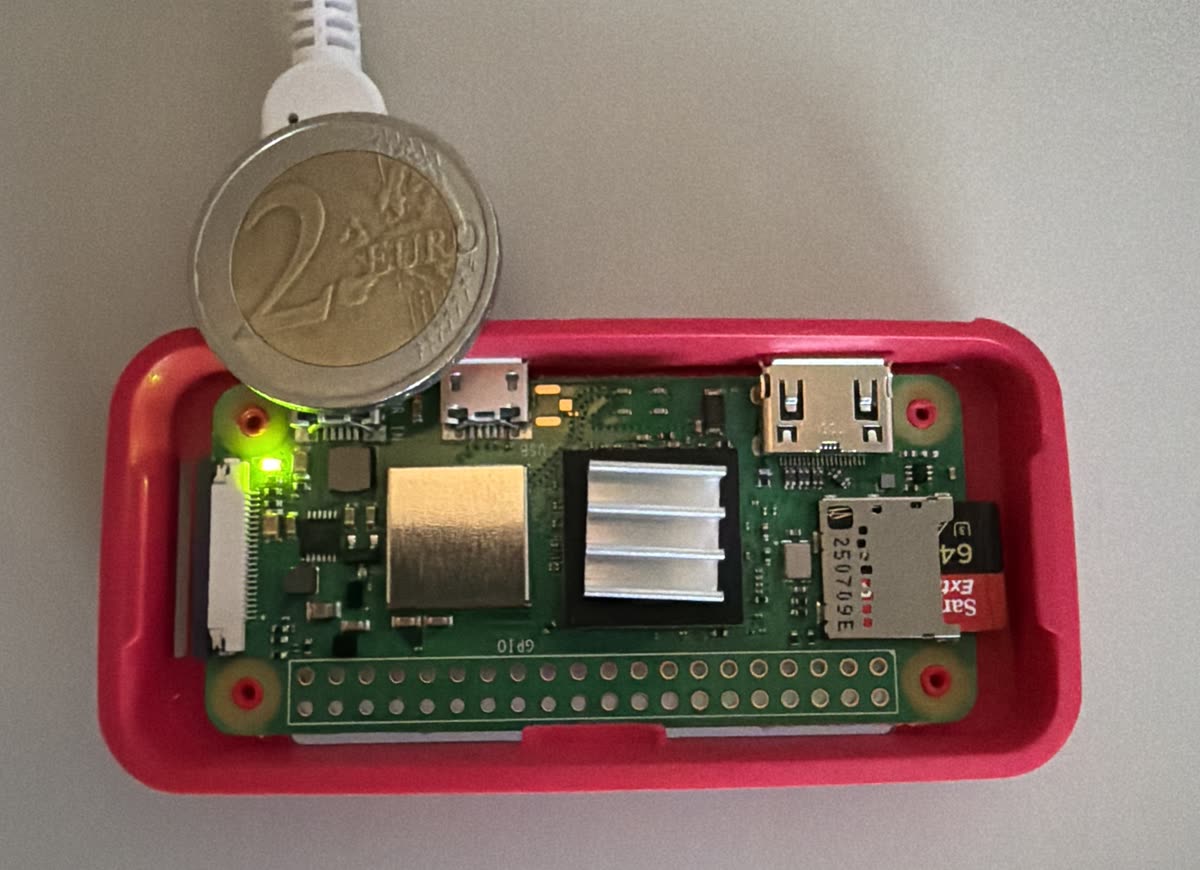
Configuration log for a headless Raspberry Pi Zero 2 W intended to run Matterbridge only. Goal: maximise usable RAM, with zram as the only swap.
| Area | Before | After |
|---|---|---|
| Swap | zram only (~415 MB, PRIO 100) | zram only (231 MB = min(ram / 2, 512), zstd, PRIO 100) |
vm.swappiness |
default (60) | 10 |
| GPU firmware split | 64 MB (arm=448M) |
16 MB (arm=496M) |
| CMA reservation | 256 MB | 64 MB |
| KMS graphics driver | enabled | disabled (headless) |
Usable RAM (MemTotal) |
~415 Mi | ~462 Mi |
| Boot target | graphical.target | multi-user.target (console) |
| Running services | desktop stack (VNC, audio, NFS…) | 13 essential units |
| RAM used at idle | ~219 Mi | ~143 Mi (≈ +75 Mi free) |
Initial swap inspection showed zram only — a compressed RAM swap created by
systemd-zram-generator — and no SD-card swapfile.
swapon --show
free -h
cat /proc/swaps
Result: one device, /dev/zram0 (type partition, PRIO 100), no /var/swap.
Identified the zram owner (neither zram-tools nor zram-config, but the
systemd generator):
systemctl list-units --type=service | grep -i zram
zramctl
dpkg -l | grep -i zram        # -> systemd-zram-generator
zramctl showed good compression (e.g. ~114 MB of data compressed to ~23 MB with
zstd, roughly 5:1). That efficiency is why zram was kept as the only swap.
The zram size and algorithm are set in /etc/systemd/zram-generator.conf (see
Reset swap).
Lowers how aggressively the kernel swaps:
echo 'vm.swappiness=10' | sudo tee /etc/sysctl.d/99-swappiness.conf
sudo sysctl --system
Verified vm.swappiness = 10 applies last in load order (after 70-rpi-swap.conf
and 98-rpi.conf), so the value is not overridden.
swapon --show
free -h
Expected — one swap device:
NAME       TYPE       SIZE   USED PRIO
/dev/zram0 partition  ...           100
Confirmed surviving a reboot.
On Trixie the stock dtoverlay=vc4-kms-v3d loads the KMS graphics driver, which
reserves 256 MB of CMA. The firmware also reserved 64 MB for the GPU
(arm=448M). None of this is needed on a headless Matterbridge node.
Inspected first:
grep -E 'cma|vc4-|gpu_mem|dtoverlay' /boot/firmware/config.txt
cat /proc/cmdline | tr ' ' '\n' | grep -i cma
vcgencmd get_mem arm && vcgencmd get_mem gpu
grep -i cma /proc/meminfo        # CmaTotal: 262144 kB = 256 MB
/boot/firmware/config.txtBackup first:
sudo cp /boot/firmware/config.txt /boot/firmware/config.txt.bak
sudo nano /boot/firmware/config.txt
Changes made (top, non-conditional section only):
# was: dtoverlay=vc4-kms-v3d
#dtoverlay=vc4-kms-v3d
# was: max_framebuffers=2
#max_framebuffers=2

camera_auto_detect=0      # was 1 (no camera attached)
display_auto_detect=0     # was 1 (no display attached)

gpu_mem=16                # new line — minimum GPU split (effective once KMS is off)
Left untouched: arm_64bit=1, disable_overscan=1, arm_boost=1,
disable_fw_kms_setup=1, and all conditional blocks ([cm4], [cm5], [pi5],
[all]). The dwc2 and nospi10 overlays live under [cm5]/[pi5] filters and
do not apply to the Zero 2 W — they are inert.
Optional (not required): #dtparam=audio=on to drop audio — tiny gain, safe.
Then reboot:
sudo reboot
free -h
vcgencmd get_mem arm && vcgencmd get_mem gpu
grep -i cma /proc/meminfo
swapon --show
Results after reboot:
arm=496M (was 448M) — +48 MB reclaimed from the firmware GPU splitMemTotal ≈ 462 Mi (was ~415 Mi) — +47 Mi usable RAMCmaTotal = 65536 kB (64 MB) (was 256 MB) — CMA constraint lifted/dev/zram0 PRIO 100)This SD card was flashed with the Desktop image, so a full graphical stack was
running purely to support remote desktop (wayvnc) plus an audio stack — none of it
needed for a headless Matterbridge node.
Identified the stack:
systemctl list-units --type=service | grep -iE 'vnc|wayvnc|pipewire|wire|bluetooth'
systemctl --user list-units --type=service 2>/dev/null | grep -iE 'vnc|pipewire|wire'
systemctl get-default        # was: graphical.target
The single biggest win — switches the default boot target from the graphical desktop to console-only, so the compositor, VNC, and desktop never start:
sudo systemctl set-default multi-user.target
Reversible anytime with sudo systemctl set-default graphical.target.
sudo systemctl disable --now wayvnc.service wayvnc-control.service
Four PipeWire units plus sockets so nothing socket-activates them back:
systemctl --user mask pipewire.service pipewire-pulse.service wireplumber.service \
  filter-chain.service pipewire.socket pipewire-pulse.socket
sudo systemctl disable --now nfs-blkmap.service rpcbind.service rpcbind.socket
sudo systemctl stop rpcbind.socket      # socket lingers in the current session
Verify:
systemctl is-active  rpcbind.service rpcbind.socket nfs-blkmap.service   # -> inactive
systemctl is-enabled rpcbind.service rpcbind.socket nfs-blkmap.service   # -> disabled
bluetooth.service was left running. Matterbridge core only needs mDNS, but some
device plugins may use BLE, so it stays as a safe default. To disable later if no
plugin needs it: sudo systemctl disable --now bluetooth.service.
avahi-daemon (critical — Matter/mDNS lifeline), dbus, NetworkManager,
wpa_supplicant, ssh, cron, getty@tty1 (console login), the systemd-* core
(journald, logind, timesyncd, udevd), and user@1000. Kernel threads
(kswapd0, kworker/*, rcu_preempt, etc.) are not services and cannot be disabled.
Running services dropped from a sprawling desktop list to 13 essential units:
free -h
systemctl list-units --type=service --state=running
used fell from ~219 Mi to 143 Miavailable rose from ~243 Mi to 318 Mi (≈ +75 Mi of working RAM freed)wayvnc, wayvnc-control, pipewire*, wireplumber, filter-chain, nfs-blkmap,
rpcbind all goneThis is about the leanest, most deliberate footprint this board can run.
config.txt backup: /boot/firmware/config.txt.bakdtoverlay=vc4-kms-v3d (and
re-enable camera_auto_detect / display_auto_detect as needed).config.txt directly on the boot partition from
another machine.Run after Matterbridge and Bun are installed and generating logs — not before:
df -h /
sudo apt autoremove --purge
sudo apt clean
sudo journalctl --vacuum-size=50M
Matterbridge on Bun is the real RAM consumer; this memory headroom is what it runs on.
free -h
systemctl list-units --type=service --state=running
Output with Matterbridge running on Bun (up 3 days, 25 Sep 2026). Bun uses ~250 MB RSS; zram holds ~100 MB of data compressed to ~18 MB (≈ 5.6:1):
               total        used        free      shared  buff/cache   available
Mem:           462Mi       387Mi        25Mi        16Ki       104Mi        75Mi
Swap:          230Mi       106Mi       124Mi
  UNIT                      LOAD   ACTIVE SUB     DESCRIPTION
  avahi-daemon.service      loaded active running Avahi mDNS/DNS-SD Stack
  bluetooth.service         loaded active running Bluetooth service
  cron.service              loaded active running Regular background program processing daemon
  dbus.service              loaded active running D-Bus System Message Bus
  [email protected]        loaded active running Getty on tty1
  NetworkManager.service    loaded active running Network Manager
  ssh.service               loaded active running OpenBSD Secure Shell server
  systemd-journald.service  loaded active running Journal Service
  systemd-logind.service    loaded active running User Login Management
  systemd-timesyncd.service loaded active running Network Time Synchronization
  systemd-udevd.service     loaded active running Rule-based Manager for Device Events and Files
  tailscaled.service        loaded active running Tailscale node agent
  [email protected]         loaded active running User Manager for UID 1000
  wpa_supplicant.service    loaded active running WPA supplicant

Legend: LOAD   → Reflects whether the unit definition was properly loaded.
        ACTIVE → The high-level unit activation state, i.e. generalization of SUB.
        SUB    → The low-level unit activation state, values depend on unit type.

14 loaded units listed.
This will create the required directories if they don't exist
cd ~
# ✅ Safe precaution if matterbridge was already running with the traditional setup
sudo systemctl stop matterbridge
# ✅ We need to uninstall from the global node_modules
bun remove matterbridge --global
# ✅ Creates all needed dirs
mkdir -p ~/Matterbridge ~/.matterbridge ~/.mattercert
# ✅ Ensures ownership
chown -R $USER:$USER ~/Matterbridge ~/.matterbridge ~/.mattercert
# ✅ Secure permissions
chmod -R 755 ~/Matterbridge ~/.matterbridge ~/.mattercert
# ✅ Install matterbridge and mb-service in the local global node_modules, with the local cache and no sudo
bun add matterbridge mb-service-linux --global --omit=dev
# ✅ Clear bash command cache as a precaution
hash -r
# ✅ Check which matterbridge
which matterbridge
# ✅ Check which mb-service
which mb-service
# ✅ Will output the matterbridge version
bunx --bun matterbridge --version
# ✅ Will create the service file
bunx --bun mb-service create
To stop the journal logs from growing too much, make the setting permanent. Run
sudo nano /etc/systemd/journald.conf
add these to the [Journal] section:
# Store logs persistently in /var/log/journal so they survive reboots.
Storage=persistent
# Compress logs to save space.
Compress=yes
# Keep logs for a maximum of 3 days.
MaxRetentionSec=3days
# Rotate logs daily within the 3-day retention period.
MaxFileSec=1day
# Disable forwarding to syslog to prevent duplicate logging.
ForwardToSyslog=no
# Limit persistent logs in /var/log/journal to 100 MB.
SystemMaxUse=100M
# Limit runtime logs in /run/log/journal to 10 MB.
RuntimeMaxUse=10M
save it and run
sudo systemctl restart systemd-journald
# 1. create BOTH directories the script depends on
sudo install -d -m 0755 /etc/systemd/journald.conf.d          # the drop-in dir (was missing on new host)
sudo install -d -g systemd-journal -m 2755 /var/log/journal   # the persistent journal dir

# 2. write the drop-in
sudo tee /etc/systemd/journald.conf.d/99-matterbridge.conf >/dev/null <<'EOF'
[Journal]
# Store logs persistently in /var/log/journal so they survive reboots.
Storage=persistent

# Compress logs to save space.
Compress=yes

# Keep logs for a maximum of 3 days.
MaxRetentionSec=3days

# Rotate logs daily within the 3-day retention period.
MaxFileSec=1day

# Disable forwarding to syslog to prevent duplicate logging.
ForwardToSyslog=no

# ── Journal size caps: two DIFFERENT storage locations ──────────────────────
#
# systemd keeps up to TWO journals, and these two settings cap them separately:
#
#   SystemMaxUse   → the PERSISTENT journal on DISK   (/var/log/journal)
#                    Survives reboots. Costs SD/disk space + write wear.
#                    Only used when Storage=persistent (or auto + dir exists).
#
#   RuntimeMaxUse  → the VOLATILE journal in RAM       (/run/log/journal, tmpfs)
#                    Lost on reboot. Costs RAM. Always present at early boot
#                    (before /var/log is ready), then flushed to the disk journal.
#
# On a Pi 5 (8 GB, ample RAM) disk space is the cheaper resource, so we allow a
# larger persistent journal and keep the RAM journal modest.
# (On a RAM-starved box like the Zero 2 W the priority flips: shrink RuntimeMaxUse
#  hard so logs don't eat memory the bridge needs.)

# Limit persistent logs in /var/log/journal to 100 MB.
SystemMaxUse=100M

# Limit runtime logs in /run/log/journal to 10 MB.
RuntimeMaxUse=10M
EOF

# 3. apply + verify
sudo systemctl restart systemd-journald && sudo journalctl --flush
sudo systemd-analyze cat-config systemd/journald.conf | grep -iE 'storage|maxuse|retention'
# Clear and restart the zram swap — idempotent, fail-free.

# 1. Turn off ALL swap (ignore "not active" errors)
sudo swapoff -a 2>/dev/null || true

# 2. Tear down any existing zram device cleanly
sudo systemctl stop '[email protected]' 2>/dev/null || true
sudo swapoff /dev/zram0 2>/dev/null || true
[ -b /dev/zram0 ] && echo 1 | sudo tee /sys/block/zram0/reset >/dev/null 2>&1 || true

# 3. (Re)write the zram generator config
sudo tee /etc/systemd/zram-generator.conf >/dev/null <<'EOF'
[zram0]
zram-size = min(ram / 2, 512)
compression-algorithm = zstd
EOF

# 4. Reload systemd so the generator picks up the new config
sudo systemctl daemon-reload

# 5. Bring zram back (generator formats + activates at its default priority 100)
sudo systemctl restart '[email protected]' 2>/dev/null || true

# 6. Show the result
sudo swapon --show